the os x tips thread

Discuss music production with Ableton Live.
Pitch Black
Posts: 6722
Joined: Sat Dec 21, 2002 2:18 am
Location: New Zealand
Contact:

Re: changed: Put all your awesome non audio os x tips here.

Post by Pitch Black » Sat May 30, 2009 9:54 pm

oblique strategies wrote:
Pitch Black wrote:Sorry, gonna bend the rules of the thread title here... an awesome non osx audio tip.

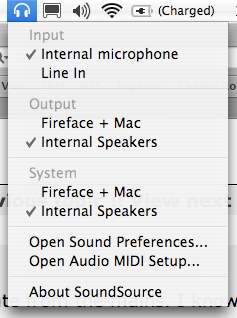
SoundSource lets you switch audio hardware from your menu bar and provides quick shortcuts to Audio and MIDI prefs.

Image

http://www.rogueamoeba.com/freebies/
Nice. Do you feel it's safe enough to have running when you do a gig?
Totally. Been running it forever. :D

oblique strategies
Posts: 3606
Joined: Thu Nov 02, 2006 9:57 pm
Location: Another Green World

Re: changed: Put all your awesome non audio os x tips here.

Post by oblique strategies » Sat May 30, 2009 9:59 pm

Pitch Black wrote:
oblique strategies wrote:
Pitch Black wrote:Sorry, gonna bend the rules of the thread title here... an awesome non osx audio tip.

SoundSource lets you switch audio hardware from your menu bar and provides quick shortcuts to Audio and MIDI prefs.

Image

http://www.rogueamoeba.com/freebies/
Nice. Do you feel it's safe enough to have running when you do a gig?
Totally. Been running it forever. :D
Wunderbar! Thanks.

oblique strategies
Posts: 3606
Joined: Thu Nov 02, 2006 9:57 pm
Location: Another Green World

Re: the os x tips thread

Post by oblique strategies » Sat May 30, 2009 10:03 pm

Here's another little helper CAPS Warn
http://www.macupdate.com/info.php/id/21425/caps-warn

"CAPS Warn is a Preference Pane that provides:
A) on-screen indications of when the Caps Lock, Shift, Control, Option, or Command keys are pressed (or stuck on by Sticky Keys)

or B) warnings that: 1) you have turned on the CAPS Lock and/or 2) you have typed a specified number (default 5) of keys with the SHIFT key (or Sticky Keys SHIFT) or CAPS Lock.

CAPS Warn warns you regardless of what application you are typing into."

Especially nice if you use keyboard mappings with Live.

I have a nice RED arrow in my menu bar that is easy to notice informing me of my caps status.
oblique strategies
Posts: 3606
Joined: Thu Nov 02, 2006 9:57 pm
Location: Another Green World

Re: changed: Put all your awesome non audio os x tips here.

Post by oblique strategies » Sat Jun 13, 2009 7:39 am

fishmonkey wrote:along similar lines is dark adapted:

http://www.aquiladigital.us/darkadapted/
This is really nice for fine tuning the brightness of the screen (in addition to it's night vision modes).

fishmonkey
Posts: 4479
Joined: Wed Oct 24, 2007 4:50 am

Re: the os x tips thread

Post by fishmonkey » Sat Jun 13, 2009 8:33 am

just ran into this free little system pref pane which helps with locating the mouse pointer, especially handy if you've got big screens and lose the cursor a lot...

http://www.2point5fish.com/index.html

Jekblad
Posts: 2353
Joined: Tue May 13, 2008 2:02 am
Contact:

Re: the os x tips thread

Post by Jekblad » Sat Jun 13, 2009 4:53 pm

save about a million seconds a day by launching apps from spotlight.

command+spacebar opens spotlight. Type "live" and hit enter, and live is opening. Pretty soon you just have to hit the "l" key as it sort of learns your behavior.

in system prefs you can choose what spotlight searches first, select apps and then folders can be useful to search as well. That way if you don't know the name of the file or live set you're searching you can type the folder it might be in and search manually there.
2.4 ghz Macbook Pro 8gb RAM, SSD, Live 9 Suite, Puremagnetik, Minimal Talent

weeddigger
Posts: 1013
Joined: Tue Jan 29, 2008 3:48 am

Re: the os x tips thread

Post by weeddigger » Sat Jun 13, 2009 10:14 pm

I love the monochrome screen tip... Amazing...


Anyhow...


(Cmd + R) does a screen refresh when on Safari....

(Cmd + T) opens a new tab in Safari

(Alt + Cmd + =) Combines all your Safari windows and seperates them by tabs.

You can then cycle through your tabs by hitting (Shift + Cmd + ] ) or (Shift + Cmd + [ )
If you can imagine it, it can happen...

taoyoyo
Posts: 283
Joined: Fri Jan 23, 2009 7:17 pm
Location: Atlanta, GA
Contact:

Re: the os x tips thread

Post by taoyoyo » Sun Jun 14, 2009 12:02 am

Jekblad wrote:save about a million seconds a day by launching apps from spotlight.

command+spacebar opens spotlight. Type "live" and hit enter, and live is opening. Pretty soon you just have to hit the "l" key as it sort of learns your behavior.

in system prefs you can choose what spotlight searches first, select apps and then folders can be useful to search as well. That way if you don't know the name of the file or live set you're searching you can type the folder it might be in and search manually there.
... Similar to this one, there is a free application called 'QuickSilver' that on the click of a hot key (I use option-tab) allows you to launch apps, find folders and search through them, whilst also allowing you to do finder-type functions with files that you find (such as delete, move, copy, rename, open with etc).

It learns what you type/use too like Spotlight so I can not even look at the screen whilst typing 'option-tab, lv, enter' and opening Live. ('Logic' is 'l' at the moment!). Can't live without it!

http://docs.blacktree.com/quicksilver/w ... uicksilver
http://taoyoyo.com

Late 2011 15" Macbook Pro | 10.8.4 | RME Babyface

taoyoyo
Posts: 283
Joined: Fri Jan 23, 2009 7:17 pm
Location: Atlanta, GA
Contact:

Re: the os x tips thread

Post by taoyoyo » Sun Jun 14, 2009 12:03 am

weeddigger wrote:I love the monochrome screen tip... Amazing...


Anyhow...


(Cmd + R) does a screen refresh when on Safari....

(Cmd + T) opens a new tab in Safari

(Alt + Cmd + =) Combines all your Safari windows and seperates them by tabs.

You can then cycle through your tabs by hitting (Shift + Cmd + ] ) or (Shift + Cmd + [ )
... Thanks for those last two! :)
http://taoyoyo.com

Late 2011 15" Macbook Pro | 10.8.4 | RME Babyface

Jekblad
Posts: 2353
Joined: Tue May 13, 2008 2:02 am
Contact:

Re: the os x tips thread

Post by Jekblad » Sun Jun 14, 2009 2:51 am

dude i tried so hard to get into quicksilver, but it never clicked. can you give a workflow example where it pwns spotlight?
2.4 ghz Macbook Pro 8gb RAM, SSD, Live 9 Suite, Puremagnetik, Minimal Talent

taoyoyo
Posts: 283
Joined: Fri Jan 23, 2009 7:17 pm
Location: Atlanta, GA
Contact:

Re: the os x tips thread

Post by taoyoyo » Sun Jun 14, 2009 8:46 pm

Jekblad wrote:dude i tried so hard to get into quicksilver, but it never clicked. can you give a workflow example where it pwns spotlight?
Not really. I got into using Quicksilver before Spotlight got enhanced in Leopard and by that time it had clicked with me. I don't use it for anything spectacular, mainly just app launches and opening folders, wouldn't really call myself a power user. :)
http://taoyoyo.com

Late 2011 15" Macbook Pro | 10.8.4 | RME Babyface

re.mark
Posts: 1248
Joined: Mon Oct 20, 2008 11:25 pm
Location: UK

Re: the os x tips thread

Post by re.mark » Sun Jun 14, 2009 9:38 pm

To rearragne the Icons in your MenuBar (top right) simply press CMD and click and drag to a new position. Similar the the dock, CMD and dragging off the menu bar removes the icon altogether.


my new menu bar: Image feat:
iStatPro RAM meter, CPU meter / Spaces / Bluetooth / Airport / SoundSource (Replacing the rergular Audio Monitor) / Power / iStatPro calender/clock (replacing the osx clock as its smaller and cleaner imo) :) funfun

Bokonon
Posts: 73
Joined: Sun Mar 23, 2008 10:16 pm
Location: Southend
Contact:

Re: the os x tips thread

Post by Bokonon » Sun Jun 14, 2009 10:07 pm

epiphanius wrote:>>come on... pick a fight

Ok - in XP I can tell the cursor to jump to the default button a dialog, an option which improves workflow considerably. On a Mac - you have to pay a 3d party developer $20.00, for the same functionality.
The default button in a dialog is highlighted blue, meaning you just press return and it presses it for you - if you want to press another button (like "don't save" or "cancel") then press cmd then the initial letter of the button you want to press.

Unless you meant something else.

In terms of productivity and workflow:

http://docs.blacktree.com/quicksilver/w ... uicksilver
http://cocoaapp.com/products/dockables/
http://www.macupdate.com/info.php/id/14352

For explaining and communicating:
http://www.jingproject.com/
http://boinx.com/mousepose/overview/ (not free - only one, really good if you do any demonstrating)
http://www.2point5fish.com/

UI Tweak
http://www.macupdate.com/info.php/id/16577

muthafunka
Posts: 2251
Joined: Fri Jan 10, 2003 5:28 pm
Location: Tokyo

Re: the os x tips thread

Post by muthafunka » Sun Jun 14, 2009 11:56 pm

If you're a compulsive list view user who uses the arrow eys to navigate a lot, CMD plus down arrow is the same as a double click. Simple but lovely.

Slightly OT, but who misses the pre-Leopard window audio preview functionality? Yes you can click the little arrow but can no longer scroll through a file, and if you use the space bar to quick-preview the file with scrolling you're locked to that, as soon as you try and click somewhere else the preview disappears. Dealing with lot sof audio files this is one the biggest FAILS for me with Leopard.

forge
Posts: 17422
Joined: Wed Apr 21, 2004 9:47 am
Location: Queensland, AU
Contact:

Re: the os x tips thread

Post by forge » Mon Jun 15, 2009 3:00 am

I use Cmd + ` a lot to toggle through open windows for the application

I find it a lot quicker than Expose - just Cmd + tab to choose the App, then cmd + ` to find the window

I used to use spaces with ctrl + 1,2,3,4 to choose them, and assigned certain apps to spaces, but in the end I find cmd + tab quicker

I also use it to see if I have any mail (I used thunderbird with no irritating notifications) and you can then press ESC to cancel the cmd+ tab from switching apps - fortunately tab, ` and ESC are all next to each other

Post Reply